Ever wondered why your documents look different on other devices? Consistency is the cornerstone of professional communication. Editable files are great for teamwork, but they don’t always look the same everywhere.
When you convert Word to PDF, your document stays the same. This is great for keeping things the same when you print or send reports. Learning how to transfer Word to PDF helps keep your work safe from changes.
This guide will show you how to handle DOCX to PDF with ease. We’ll cover how to get your files ready, check the formatting, and keep them secure. This way, your documents will always look professional.
Key Takeaways
- Understand why fixed-layout files are superior for sharing and printing.
- Learn the primary differences between editable documents and stable formats.
- Discover how to preserve fonts and image resolution during the export process.
- Gain insights into verifying your file properties for professional standards.
- Follow expert tips to ensure your document layout remains consistent on any device.
Why Reliable Document Conversion Matters
Converting documents reliably is key to moving from a draft to a final product. When you share a file, you want it to look the same to everyone, no matter their software.
Choosing to convert Word to PDF keeps your work safe and consistent. This is more than what regular word files can do on their own.
When a Word file should become a PDF
Some documents need to look the same everywhere to keep their integrity. If your file must look the same on every screen, it’s time to make it a PDF.
Here are some times to convert your files:
- Resumes and CVs: Keep your info and experience sections in line.
- Signed Agreements: Safeguard signatures and legal parts from changes.
- Formal Reports: Keep charts, graphs, and data tables in their places.
- Application Forms: Stop the document from changing on mobile devices.
How PDF protects layout across devices
The main benefit of PDFs is their ability to keep the PDF layout fixed. Unlike Word documents, which can change based on the viewer’s setup, PDFs are like digital photos of your page.
This stability is invaluable for keeping your headers, footers, and margins in place. Using PDFs ensures your PDF formatting stays the same on any device.
Common problems caused by rushed conversions
Trying to convert Word to PDF quickly often leads to tech issues. Rushing can make your document look bad or hard to read.
Common problems include:
- Altered Spacing: Paragraphs may shift, causing awkward gaps or overlapping text.
- Missing Fonts: If a specific font is not embedded, the system may substitute it with a generic alternative, ruining your design.
- Broken Images: High-resolution graphics can become blurry or disappear entirely if the conversion settings are incorrect.
- Inconsistent PDF formatting: Hyperlinks may stop working, or the document may lose its searchable text capabilities.
Checking your PDF layout before finalizing it saves time and avoids confusion. A little extra care ensures your message is delivered as you intended.
Word Transfer to PDF: What the Process Involves
When you switch your work from a word processor to a portable format, many technical steps happen. Knowing these steps helps you handle your files better. Converting a DOCX to PDF means changing your document’s structure into a format everyone can view.
How Word and PDF handle text, images, and formatting
Microsoft Word is for editing, changing text and layouts based on your settings. A PDF, on the other hand, keeps everything in place, so your document looks the same everywhere.
The difference between exporting, printing, and saving as PDF
Many think these methods are the same, but they’re not. When you export Word as PDF, it keeps your document’s details and links. Printing to PDF can turn text into images, making it hard to edit or search later.
What makes a converted PDF reliable
A good conversion keeps your document professional and useful anywhere. It’s reliable if it keeps the original look and feel.
Text accuracy and searchable content
A searchable PDF lets you highlight, copy, and find words. This works because the software maps characters correctly, not just taking a picture of the text. This is key for accessibility and usefulness.
Stable page layout and embedded fonts
To keep your document looking right, the conversion must include embedded fonts PDF data. Without it, your chosen font might not show up right, causing text issues. Embedding ensures your document’s look stays the same.
| Feature | Exporting | Printing to PDF |
|---|---|---|
| Text Searchability | High (Native) | Variable (Often Low) |
| File Size | Optimized | Often Larger |
| Link Preservation | Fully Supported | Usually Lost |
| Visual Fidelity | Excellent | Good |
Prepare the Word File Before Conversion
Getting a professional document ready starts before you export it. Good Word document preparation is key for a smooth digital transition. Fixing structural issues early keeps your file stable and looks good on any platform.
Clean up headings, spacing, and page breaks
First, check your document for formatting errors that mess up the flow. Make sure all headings are in order. Get rid of extra spaces and use section breaks instead of manual page breaks to avoid layout problems.
Check images, tables, links, and captions
Make sure all images and tables are in the right place in your text. Test any links to make sure they work after you convert the document. For more tips, see this guide on converting documents.
Confirm page size, margins, and orientation
Choosing the right Word page size is very important. If you don’t set it, the software might use default settings that mess up your layout. Always check your margins and orientation to match your needs.
Using Word styles instead of manual formatting
Using Word styles is the best way to keep your document looking the same everywhere. Manual formatting can cause problems during conversion. Styles help your document look professional on any device.
Removing comments and tracked changes
Before you make your print-ready PDF, remove all notes and changes. Visible comments or changes can ruin the privacy and look of your document. Always check your document one last time to make sure it’s just right.
Choose the Right Word-to-PDF Conversion Method
Choosing the right way to convert your documents depends on your needs and how you work. Whether you’re a student, a small business owner, or a corporate professional, your choice affects the quality and security of your documents.
When Microsoft Word is the best choice
If you’re already using Office, Microsoft Word PDF conversion is the most efficient option. This method keeps your document’s structure, like headings and hyperlinks, unchanged.
It’s perfect when your document is already open and doesn’t need editing. Using the built-in export feature lets you control your document without needing external servers or software.

When Google Docs provides a practical alternative
Google Docs PDF export is great for cloud-based workflows. It’s ideal for teams that work together in real-time and need to share documents quickly.
The process is easy and doesn’t require any extra software. It’s best for simple documents where you mainly focus on text and layout.
When Adobe Acrobat or an online converter makes sense
For complex documents needing advanced features like digital signatures, Adobe Acrobat PDF tools offer more control. These tools are perfect for detailed layouts that other processors might struggle with.
An online Word-to-PDF converter is a good choice for one-time tasks. These tools are easy to use from any device, making them handy when you’re not at your desk.
Comparing convenience, quality, privacy, and cost
Choosing the right tool means weighing your immediate needs against long-term goals. While convenience is key, don’t forget about privacy and document integrity, which are critical when handling sensitive information.
| Method | Convenience | Quality | Privacy |
|---|---|---|---|
| Microsoft Word | High | Excellent | High |
| Google Docs | High | Good | Moderate |
| Adobe Acrobat | Moderate | Professional | High |
| Online Converter | Very High | Variable | Low |
Microsoft Word is the top choice for managing documents due to its quality and security. For those needing Adobe Acrobat PDF features, the cost is worth it for the advanced editing and protection. Always choose trusted platforms for confidential data to keep your information safe.
Transfer a Word Document to PDF in Microsoft Word
Learning how to word transfer to pdf in Microsoft Word keeps your documents looking professional and safe. Using Word’s built-in tools is the best way to keep your formatting just right. This method also avoids the layout problems that can happen with other tools.
Open and review the original document
First, check your document for any mistakes. Look at your page breaks, image placement, and font to make sure everything looks right. Doing this now saves you from having to do it again later.
Save the file as a PDF
To save Word document as PDF on Windows, go to “File” and choose “Export.” Pick the PDF/XPS option. On a Mac, just go to “File” and then “Save As,” and choose PDF from the list.
Adjust PDF publishing options
When you start the export Word as PDF process, you’ll see settings that affect the final look. These options help balance file size and quality.
Choosing standard or minimum-size output
“Standard” is good for documents with high-quality images or for professional printing. “Minimum size” is better for emailing if you need a smaller file. But, it might make images a bit less clear.
Including document properties and accessibility tags
Make sure to include “Document properties” for better management. Also, check “Document structure tags for accessibility” to help screen readers. This makes your document accessible to everyone.
| Setting | Best For | File Size | Image Quality |
|---|---|---|---|
| Standard | Printing & Professional Use | Larger | High |
| Minimum Size | Email & Web Sharing | Smaller | Compressed |
| Custom | Specific Requirements | Variable | Adjustable |
Open the exported PDF and verify the result
After converting, open the PDF in a viewer to check it. Make sure page numbers are right and text isn’t cut off. Checking your work makes sure your document is ready to share.
Convert a Word File to PDF with Google Docs
Google Docs is a great choice if you want to convert a Word file to PDF online. It’s perfect for those who like working in the cloud, not on their computer. With Google Drive document conversion, you can access your files from anywhere with internet.
Upload and inspect the Word document
First, upload your Word document to Google Drive. Double-click it to open it in Google Docs. This lets Google Docs change the file to its own format.
Check the document carefully. Look for any changes in layout or missing parts that might have happened during upload.
Download the document in PDF format
After checking, go to the “File” menu in the top left corner. Choose “Download” and pick “PDF Document (.pdf)” from the options. This starts the Google Docs PDF creation process, saving it to your computer.
Check for changes in fonts, spacing, and page breaks
Compare the downloaded PDF with your original Word file. Google Docs might change font styles, line spacing, or page breaks. Always verify the final output to meet your standards.
“The integrity of your document depends on careful review after every conversion, as software transitions can occasionally alter complex formatting.”
Handling unsupported Word features
Some Word features, like complex macros or specific fonts, might not work well. If your document uses these, adjust the layout in Google Docs before exporting. This keeps your document looking right.
Keeping the original file and conversion copies organized
Keep your original DOCX file safe. Store your PDFs in a different folder to avoid mix-ups. Use clear names to make finding files easier later.
| Feature | Word Desktop | Google Docs |
|---|---|---|
| Cloud Access | Limited | Excellent |
| Formatting Fidelity | High | Moderate |
| Ease of Use | Standard | High |
| Offline Capability | Yes | No |
Use Adobe Acrobat and Online Conversion Tools Safely
Choosing the right file conversion tools is key. You must weigh the benefits of local software against web-based services. For professionals, security and precision are more important than speed.
When Adobe Acrobat offers better control
Adobe Acrobat PDF software is great for those needing advanced features. It offers detailed control over document settings that online tools can’t match.
This software keeps your documents safe and unchanged. It handles complex layouts and fonts well. Using it locally means you control your data better.
What to look for in an online Word-to-PDF converter
Choosing an online Word-to-PDF converter? Look for clear data privacy policies. A good service will delete your files right after processing.
Choose sites with secure connections to protect your data. Avoid those that ask for too much personal info or push for subscriptions.
How to convert a document without losing quality
Getting a high-quality result starts with the right settings. Whether using software or a web tool, ensure the output is right for your needs.
File limits, output settings, and batch conversion
Be aware of file size limits in tools. If you work with big documents, check if the Word to PDF converter supports batch processing. This is invaluable for handling many files at once.
OCR for scanned or image-based documents
For scanned pages, look for OCR PDF technology. It turns images into text you can search and select. This is key for keeping documents useful and accessible.
Why confidential files require extra caution
Files like contracts and medical records should stay offline. Uploading them to a public online Word-to-PDF converter is risky. You lose control over your data’s safety.
Think about your content’s sensitivity before converting it. Use secure, local Adobe Acrobat PDF tools or approved systems to keep your data safe.
Preserve Formatting During Word Transfer to PDF
Creating a document that looks professional is key, whether it’s for work or school. When you switch from a word processor to a PDF, keeping your PDF layout the same is very important. Small mistakes in spacing or alignment can make your work look less polished.
Prevent font substitution and text reflow
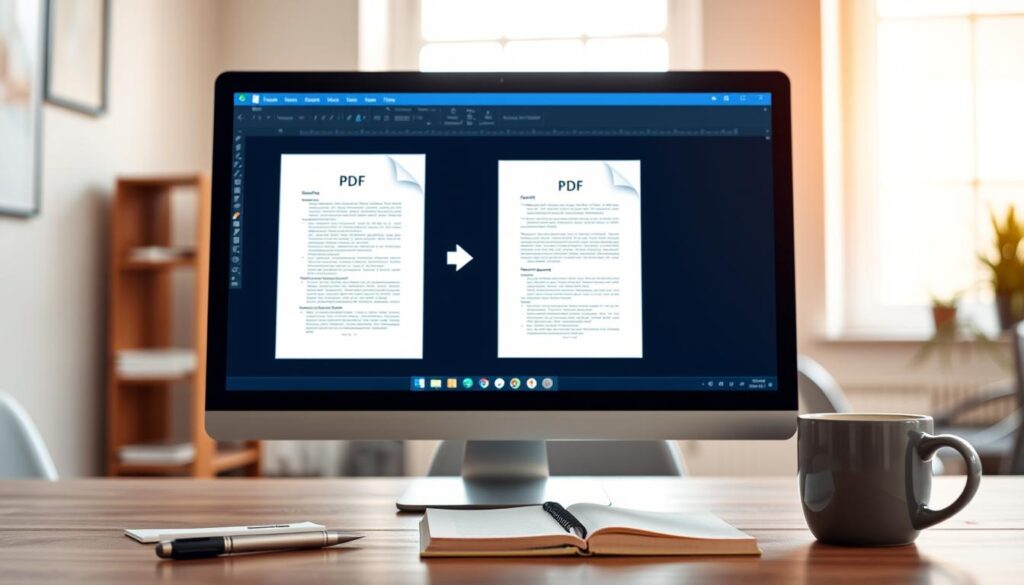
One big problem when converting files is losing specific fonts. If a system can’t find the original font, it might use a generic one instead. This can change the document’s length and cause text to reflow. To avoid this, use embedded fonts PDF settings when you export your file. This ensures your text looks the same on every device.
Keep tables, columns, and lists aligned
Complex layouts can change when converted, leading to broken table borders or misaligned columns. Check these elements at normal and enlarged sizes to spot any shifts. Consistency is key to keep your data readable and professional.
Maintain image resolution and placement
Images need careful handling to prevent them from getting pixelated or misplaced. For a print-ready PDF, use images with at least 300 dpi resolution for clear printing. Also, make sure images stay where they’re supposed to be in the text.
Checking charts, shapes, and SmartArt
Dynamic elements like charts and SmartArt need specific software to look right. Check these objects carefully to make sure labels are clear and colors are correct. If they look blurry, consider turning them into high-resolution images before exporting.
Managing hyperlinks and bookmarks
Good navigation is important in modern PDF formatting. Test every hyperlink to make sure it goes where it’s supposed to. Also, check that your bookmarks are correct to make reading easier for your audience.
Reviewing headers, footers, and page numbers
Headers and footers can get cut off if margins are wrong. Make sure page numbers are in order and text doesn’t overlap with borders. A final check ensures your file is ready for professional use or printing.
| Checklist Item | Action Required | Priority |
|---|---|---|
| Embedded Fonts | Verify all fonts are included | High |
| Image Quality | Confirm 300 dpi for print | High |
| Hyperlinks | Test all active URLs | Medium |
| Margins | Check for cut-off text | Medium |
Make the Converted PDF Readable and Accessible
Making your content available to everyone turns a regular file into an accessible PDF. It’s not just an extra feature, but a must-have for every document. By following the best practices for converting to a PDF from Microsoft, you make sure your info reaches more people.
Use a logical heading structure
A document needs a clear structure of headings. Screen readers help users move through long texts easily. Always use built-in heading styles in your source document to keep the structure during conversion.
Verify text selection and search functionality
A searchable PDF lets users highlight, copy, and find terms. If your document has scanned images, you need to use Optical Character Recognition (OCR) to make them readable. Remember, automated tools might need human checks to fix mistakes.
Add meaningful alternative text to images
Images need PDF alternative text for screen reader users. This text should briefly describe the image. Avoid using “image” or “photo” as they don’t help.
Check color contrast, reading order, and link labels
Good color contrast is key for readers with vision issues. Make sure your text is clear against the background. Also, check that the document flows logically and links are descriptive.
Testing with keyboard navigation
Many use keyboards instead of mice. Test your document by tabbing through links and form fields. If the focus skips sections, you might need to adjust it.
Using accessibility checkers before sharing
Today’s software has tools to find accessibility issues. Run an accessibility check before finalizing your document. This step is crucial for maintaining professional standards and following digital accessibility rules.
| Feature | Standard PDF | Accessible PDF |
|---|---|---|
| Heading Tags | None | Included |
| Text Search | Often Disabled | Fully Enabled |
| Image Descriptions | Missing | Included |
| Keyboard Flow | Unpredictable | Logical |
Protect Sensitive Documents During Conversion
Keeping your private data safe is very important when converting documents. This includes personal info, financial records, and business secrets. Taking steps to protect your information helps keep it away from those who shouldn’t see it.
Identify information that should not be uploaded
Before starting any confidential document conversion, check your files. Look for things like Social Security numbers, bank details, or health records.
Also, legal papers and business plans are sensitive. If a document could cause trouble if shared, don’t upload it to public cloud services.
Use trusted software for private or regulated files
For very private files, stay away from free online tools. They often send your files to servers you don’t control. Instead, use trusted desktop software or apps approved for your industry.
Keeping your files local means you control them better. This is key for fields like healthcare or finance, where keeping data safe is the law.
Apply PDF permissions and password protection appropriately
After preparing your document, add PDF password protection. A strong, unique password helps keep your file safe from unauthorized access.
Understanding the limits of PDF passwords
Remember, passwords aren’t enough to keep everything safe. They stop casual viewers but don’t replace strong security measures for very secret files.
Removing hidden metadata and personal information
Files often have PDF metadata like who made it and when. This info can reveal too much. Always check your file with a tool to remove this data before secure PDF conversion.
| Security Feature | Primary Benefit | Best Use Case |
|---|---|---|
| Password Protection | Prevents unauthorized opening | General confidential files |
| Metadata Removal | Clears hidden tracking data | Professional document sharing |
| Permission Settings | Restricts printing and editing | Legal or proprietary contracts |
Using these methods together makes a strong plan for confidential document conversion. Always make sure your PDF metadata is gone and your PDF password protection is on before sharing sensitive files.
Troubleshoot Common Word-to-PDF Conversion Problems
When your digital documents don’t look right, it’s time to troubleshoot Word to PDF issues. Most software converts documents automatically, but sometimes, things go wrong. Knowing how to fix these Word-to-PDF conversion problems helps keep your documents professional.
Fix fonts that change or display incorrectly
Distorted or changed fonts often come from font embedding problems. Make sure your document settings allow full font embedding. This way, the PDF reader won’t change your font to a default one.
Repair missing images, symbols, or page elements
Missing elements can happen if objects are anchored wrong or use unsupported formats. Ensure your images are set to “In Line with Text” to keep them stable. If special symbols vanish, convert them into high-resolution images before saving.
Resolve blank pages and unexpected page breaks
Blank pages might come from hidden paragraph marks or manual page breaks. Look for these hidden characters in your word processor to delete them. Adjusting your margins can also stop extra pages from appearing.
Correct blurry images and oversized PDF files
Blurry graphics usually come from too much image compression. Check your export options are set to “High Quality” or “Print Quality.” If the file is too big, use a tool to optimize it without losing quality.
Handle broken links, bookmarks, and searchable text
To keep your document a searchable PDF, avoid printing to PDF. Use “Save As” or “Export” to keep the text layer. For scanned documents, OCR PDF technology helps restore text searchability.
When to return to the Word source file
Go back to the original document for major structural issues. Problems with complex styles, headers, or page numbers are best fixed in the word processor. This ensures a smooth conversion every time.
When to use a different conversion method
For complex layouts or high-security needs, the built-in converter might not be enough. Try a professional desktop app or a cloud-based tool for better control over features like metadata and security.
| Issue | Primary Cause | Recommended Solution |
|---|---|---|
| Blurry Images | Compression settings | Increase export quality |
| Unsearchable Text | Printing to PDF | Use Export/Save As |
| Font Errors | Missing embedding | Enable font embedding |
| Layout Shifts | Margin/Break issues | Clean source formatting |
Conclusion
To make a professional document, you need to follow a careful process. First, get your source file ready. Then, pick the best tools for the job. Lastly, check the final output to make sure it’s right.
Converting to PDF is not just changing a file type. It’s about keeping your document looking good on any device. Make sure your text is easy to find and read. This way, everyone can enjoy your document without trouble.
Always save your original Word file for later changes. Use passwords or encryption for private data. These steps help keep your work safe and build trust with your readers.
You’re now ready to convert Word to PDF with ease. Double-check your settings and metadata. Look over your pages before sending. By doing this, you ensure your work is top-notch, secure, and ready for any situation.