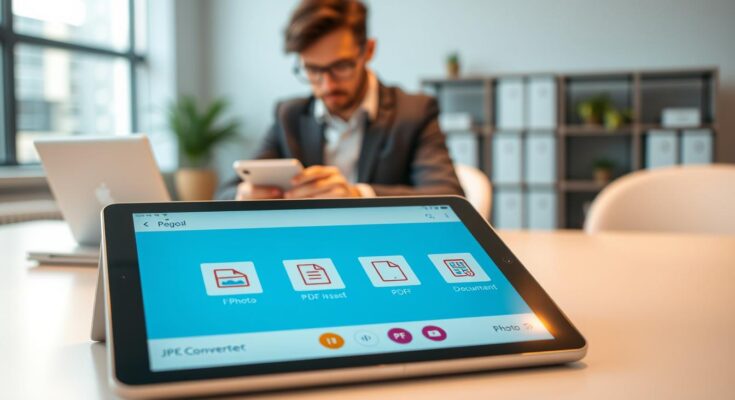
Have you ever tried to share a bunch of important documents but they were stuck as images on your phone? In today’s fast world, knowing how to convert photos to pdf is key for staying organized and professional.
Whether you’re dealing with work receipts or saving personal memories, having a reliable tool can save you a lot of time. A top-notch jpg to pdf converter app makes it easy to turn scattered photos into neat, shareable documents.
This guide will show you how modern software deals with image quality, page settings, and privacy. You’ll learn how to keep your files safe while keeping your digital space tidy and efficient.
Key Takeaways
- Learn how to transform individual images into professional, multi-page documents.
- Discover the importance of on-device processing for maximum data privacy.
- Understand how to adjust compression settings to balance file size and image clarity.
- Explore batch processing features that handle dozens of files in seconds.
- Gain tips for organizing and sharing your digital paperwork with ease.
Why Converting JPG Images to PDF Matters
Turning a photo into a formal document is a common challenge today. Capturing images is quick, but they lack the structure needed for professional use. A reliable jpg to pdf converter helps, making scattered images into a cohesive document.
Common situations that call for a PDF
Many tasks need organization that images alone can’t provide. Whether it’s a work reimbursement claim, tax receipts, or class notes, a single PDF is the standard.
Professionalism matters in official paperwork. A PDF ensures your documents are viewed as intended, without opening multiple files.
Why PDFs are easier to share, print, and store
PDFs keep formatting consistent across devices. When you share PDFs, you know the layout and images will stay the same, no matter the device.
- Universal Compatibility: PDFs open on almost any device.
- Print-Ready: Documents fit standard paper sizes perfectly.
- Archival Quality: Storing images in one file makes records easier to manage.
Problems with sending multiple JPG files
Sending many images can confuse the recipient. They must download, rename, and organize each file before reviewing.
File order, inconsistent sizing, and attachment limits
Technical limits often complicate sending raw images. Attachment size limits can prevent emails from sending.
Images also vary in size, making documents look messy. A jpg to pdf converter standardizes these pages. This ensures your PDF file sharing is smooth and professional.
What a JPG to PDF Converter App Does
An image to PDF converter turns static photos into structured documents. It takes JPG, PNG, or HEIC files and puts them on virtual PDF pages. This makes your visual data into a single, professional file ready for sharing or printing.
How image-to-PDF conversion works
The process is easy and straightforward. First, the software reads the image data and figures out the right size for a standard page. Then, it wraps the image in a PDF container. This keeps the image’s look while adding metadata for better device compatibility.
Single-image and batch-conversion options
Today’s apps are flexible for different needs. You can convert one file quickly or use batch features for many photos at once. This is essential for those who need to merge images into one PDF for keeping documents together.
Combining photos into one organized document
When combining photos, the app lets you arrange them in order. This makes your document flow logically, great for reports or receipts. You can merge images into one PDF easily without complex editing software.
Choosing page size, orientation, and image placement
Advanced apps give detailed control over image placement. You can adjust settings for a professional look:
- Page Size: Choose formats like Letter, A4, or Legal.
- Orientation: Switch between portrait and landscape to fit your image layout.
- Margins: Set custom borders to avoid cutting off your image during printing.
Offline conversion versus cloud-based tools
Offline and cloud tools have their own benefits. Offline converters work directly on your device, keeping your data safe. Cloud tools, on the other hand, offer speed and access from anywhere but require an internet connection.
Cloud tools are handy but share your files with a server. For privacy, an offline image to PDF converter is better for keeping your information secure.
Key Features to Look for in a JPG to PDF Converter App
Finding the right tool for your document needs means knowing what makes a good converter. A top-notch photo to PDF converter does more than just change file types. It boosts your productivity and keeps your images looking great.
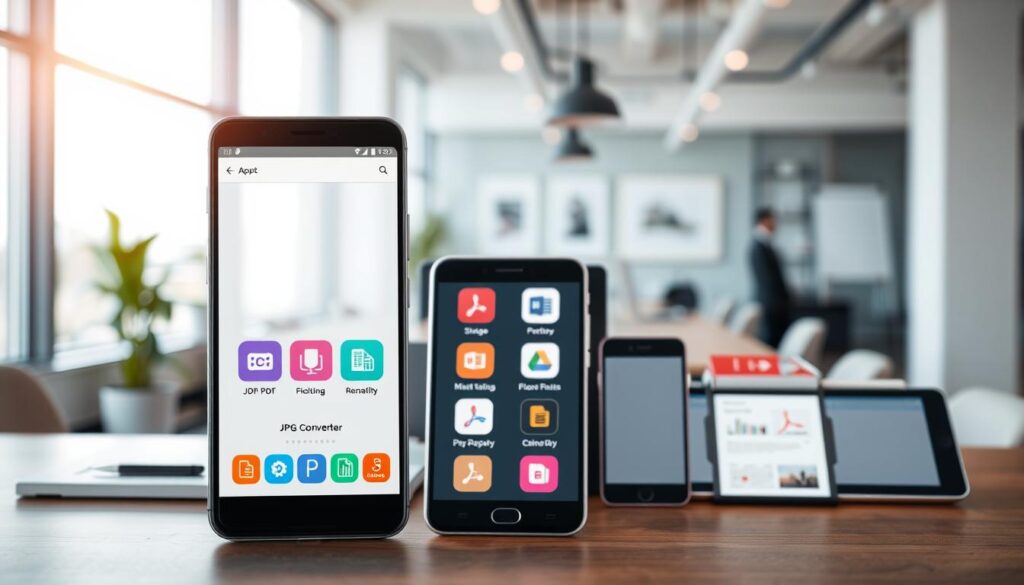
Fast conversion without unnecessary steps
A great PDF maker is all about speed. Look for an app that lets you quickly import and convert files. This means less time stuck in menus and more time on your documents.
Support for multiple JPG images and common image formats
Being able to handle different types of media is key. The best tools can handle many files at once, perfect for big reports or documents. Make sure your app works with:
- Batch processing for lots of images.
- Many image formats like PNG and HEIC.
- Automatic image orientation detection.
Image quality and PDF compression controls
Keeping file sizes down is important for digital storage. A good secure file converter lets you compress PDFs without losing quality. This is key for emailing or uploading documents.
Balancing readable text with a manageable file size
When dealing with important documents, clarity is essential. While small file sizes are nice, too much compression can ruin text. Always check the output quality before you finalize your document.
Page arrangement, rotation, cropping, and margins
Professional documents often need a little tweaking. Look for an app with easy editing tools, like the versatile PDF maker. It should let you reorder pages, rotate images, and crop borders. These features make your documents look polished and professional.
Secure file handling and privacy controls
Your documents should be safe and private. A secure file converter should process files locally, not on a server. Look for clear privacy policies and how temporary files are handled or deleted.
Sharing, saving, and printing from the app
The last step should be easy. A good tool integrates well with your device’s sharing options. It should let you send files easily and save them in organized folders. This keeps your digital space tidy.
How to Convert JPG Images to a PDF on a Phone
You can turn your phone’s photos into a neat PDF file easily. Just follow a simple process. Use a good app to convert images to PDF and keep your documents looking professional.
Selecting photos from the device gallery
First, open your chosen app and let it access your photos. Most apps let you pick multiple images at once. Make sure you’ve picked all the photos you need for your document.
Putting images in the correct order
After picking your photos, most apps show a thumbnail view. Here, you can arrange your pages in the right order. This is key to making your document easy to read from start to end.
Adjusting page settings before conversion
Before you finish, set the PDF page size to fit your content. This ensures your text looks right and isn’t cut off. Taking a little time to get this right will make your PDF look great.
When to choose portrait, landscape, letter, or A4 format
The right orientation depends on your images. Use portrait for letters and text-heavy documents. Landscape is better for wide items like receipts or charts.
| Format Type | Best Use Case | Orientation |
|---|---|---|
| Letter | Standard US Documents | Portrait |
| A4 | International Forms | Portrait |
| Custom Wide | Receipts or Charts | Landscape |
Creating and reviewing the PDF
After setting up your layout, tap the convert button. It’s very important to check the PDF right away. This way, you can fix any issues before sharing it.
Saving the file where it can be found later
Once you’re happy with the PDF, save it somewhere easy to find. Use a clear name so you can find it later. Keeping your digital space organized is key to converting images to PDF well.
Useful storage locations on Android and iPhone
On an iPhone, use the Files app or iCloud Drive for your documents. Android users might prefer the Downloads or Documents folders. You can also make a special folder for your jpg to PDF on phone projects to stay organized.
How to Create Better PDFs from Photos and Scans
The quality of your PDFs starts with the photos you take. Even the best software can’t improve a blurry image. So, make sure your original photos are clear.
Taking clear photos before conversion
Use your smartphone camera like a scanner. This way, your digital files will look professional and clear.
Lighting, focus, shadows, and camera angle
Good lighting is key to avoid glare or dark spots. Hold your device straight to prevent distortion. Tap the screen to keep the focus on the text. Minimizing shadows helps keep important details clear.
Preparing receipts, forms, and handwritten pages
Before you convert photos to pdf, get your documents ready. Flatten any curled edges and use dark ink for handwritten notes.
- Remove staples or paperclips that might create bumps.
- Place documents on a neutral, solid-colored background.
- Crop out unnecessary table surfaces or floor areas.
Keeping text readable after compression
Compression makes files easier to share but can lose details. For small print, capture your document in high-resolution. This keeps it legible even after size reduction.
“A document is only as good as the effort put into its creation; clear inputs always lead to superior digital outputs.”
Using consistent dimensions across multiple pages
Keep the same distance from the camera for each page. This makes your PDF look professional. Use a grid overlay if your app has it to keep your shots steady.
Checking the final PDF before sending it
Always review your PDF before sharing. Zoom in to check the text at normal size. A small thumbnail might look fine but be unreadable when compressed. So, it’s important to check your scan to PDF output.
Practical Uses for a JPG to PDF Converter App
A reliable PDF creator turns scattered images into organized, professional files. It uses digital document conversion to make simple snapshots into structured documents. These are ready for any situation.
Submitting forms, receipts, and reimbursement documents
Managing expenses often means tracking many paper receipts. Instead of sending loose photos, combine them into a single, clear document. This ensures your reimbursement request is processed quickly.
Sharing school notes, assignments, and study materials
Students often capture whiteboard notes or textbook pages to study later. By consolidating these images into one file, PDF file sharing with classmates or teachers becomes more efficient and organized.
Organizing work documents and project records
Professional workflows benefit from keeping related project materials together. Whether archiving meeting notes or site photos, a unified document prevents important information from getting lost in your gallery.
Creating digital copies of personal paperwork
Maintaining a digital archive of your essential documents provides peace of mind. It allows you to access critical information quickly, even when you’re away from your physical files.
Insurance records, identification documents, and household files
When digitizing sensitive items like insurance policies or identification, always prioritize security. Use a trusted tool and verify the recipient’s identity before sharing any private information.
Preparing menus, flyers, portfolios, and printable materials
Small business owners and creatives can use these tools to assemble professional portfolios or promotional flyers. Converting your designs into a standard format ensures they look consistent when printed or viewed on different devices.
Sending several related images as one professional file
Sending multiple images individually often confuses the recipient and makes filing difficult. Combining them into one file simplifies the process. This makes your PDF file sharing experience smoother and more professional for everyone involved.
Privacy, Security, and File Management Considerations
Managing digital documents needs careful thought about data safety and organization. Whether it’s personal tax forms or professional project files, knowing how tools handle your information is essential for peace of mind.
Understanding where converted files are processed
Using an online JPG to PDF converter means your images go to a remote server. Reputable services use TLS encryption to protect your data. They also delete files from their servers after one hour. Always check the privacy policy of any tool you use, not just what they say.
Protecting sensitive images and personal documents
Dealing with confidential info requires extra caution. Choose tools with strong security features to keep your data safe.
Permissions, encryption, account requirements, and temporary uploads
Today’s apps often ask for specific permissions to access your device gallery. Make sure these requests are needed for the app to work right. For very sensitive data, look for a secure file converter that supports PDF password protection. This keeps your data encrypted and unreadable, even if someone unauthorized tries to access it.
Removing unnecessary copies from the device
Digital clutter can be a security risk and use up storage. After creating and checking your PDF, delete the original images from your device. This simple step keeps your sensitive data from being duplicated in your photo library.
Using clear filenames and organized folders
Good file management helps you keep track of your documents. Use clear, consistent names like “2023_Tax_Receipts_Final.pdf” instead of vague labels. Keeping these files in encrypted folders adds extra protection against loss or unauthorized access.
Backing up important PDFs without losing control of them
Backing up your files is key to keeping them safe. Use secure, private cloud storage or encrypted external drives for your backups. Avoid sharing sensitive documents on public or shared platforms unless you’ve checked their security.
When an offline PDF converter is the safer choice
For those who value privacy above all, an offline PDF converter is the best option. These tools work on your device alone, so your files never leave your computer. This avoids the risks of cloud transfers and server storage.
| Feature | Online Converter | Offline Converter |
|---|---|---|
| Data Processing | Cloud-based | Local device |
| Internet Required | Yes | No |
| Privacy Level | High (if reputable) | Maximum |
| Security Control | Server-dependent | User-managed |
Common Conversion Problems and How to Fix Them
When your conversion doesn’t go as planned, a systematic approach helps you identify the root cause quickly. Most issues stem from simple settings or the quality of the original image. This is more often than not, not a malfunction of the software itself.
Blurry or unreadable PDFs
If your final document looks fuzzy, the issue usually lies with the source image resolution. Always ensure your original photos are captured in good lighting and are in focus before starting the process. If the text remains difficult to read, try adjusting the output settings to a higher quality profile if your app allows it.
Unexpected page orientation or cropped content
Sometimes, images may appear sideways or have edges cut off due to mismatched aspect ratios. Check your app’s layout settings to see if it is forcing a specific page size, such as A4 or Letter, which might not match your photo. Manually rotating the image within the app before finalizing the PDF often resolves these alignment issues.
PDF files that are too large to share
High-resolution photos can result in massive file sizes that are difficult to email. You should compress PDF files using the built-in tools found in most modern converters. If the app lacks this feature, consider using a reputable online JPG to PDF converter to reduce the file size while maintaining visual clarity.
Images appearing in the wrong order
Most conversion apps process images based on the sequence in which they were selected or their file names. Before you hit the convert button, take a moment to review the thumbnail preview. Most interfaces allow you to drag and drop images to reorder them into the correct sequence.
Conversion failures caused by unsupported or damaged files
If the app refuses to process a file, the image might be corrupted or saved in an incompatible format. Ensure your files are standard JPEGs and not specialized formats that the app cannot read. If a mobile app continues to fail, an online JPG to PDF converter can sometimes handle these files more effectively, provided you verify the site’s privacy policy first.
Simple checks before trying the conversion again
Before restarting the process, run through this quick checklist to save time and effort:
- Verify that the original image is clear and not pixelated.
- Confirm that the file format is supported by your chosen tool.
- Check the page orientation settings to ensure they match your document.
- Review the thumbnail order to ensure the pages flow logically.
| Problem | Likely Cause | Recommended Fix |
|---|---|---|
| Blurry Text | Low resolution | Use higher quality source |
| Large File Size | High DPI images | Compress PDF settings |
| Wrong Order | Selection sequence | Reorder in preview |
| File Error | Corrupt image | Re-save or re-scan |
Conclusion
Handling personal and work papers needs tools that are both fast and safe. A good jpg to pdf converter app turns loose images into neat, professional documents. This makes it easier to share, print, and save important papers.
Choosing the right software means finding one that fits your needs and keeps your data safe. Whether you pick a mobile app or a cloud service, make sure your info stays protected. Always check your final document for clear images, right page layout, and the right file size before sharing.
Organizing your files keeps your digital space tidy and easy to find things. Converting jpg to pdf helps keep your files consistent across all your devices. By using secure tools and preparing your documents well, you can manage your digital world with confidence.