Ever had trouble putting scattered photos into one document for work or personal use? Handling digital files can be tough. But, today’s tech offers a seamless solution for your everyday needs.
An image to pdf converter app is a handy tool. It turns simple photos into clean, shareable files. Need to digitize receipts, save notes, or keep memories? This software makes it easy.
Converting images to PDFs like JPG or PNG is simple. You can do it right from your device or camera. These tools keep your privacy safe while ensuring top-notch quality for every file.
Key Takeaways
- Easily transform various photo formats into professional documents.
- Utilize offline processing for enhanced security and privacy.
- Maintain high visual quality during the transformation process.
- Organize your digital files efficiently for quick sharing.
- Benefit from password protection features to keep data safe.
Why an Image to PDF Converter App Is Useful
Turning your scattered images into one document is a game-changer for your daily work. Using a photo to PDF tool saves you time. You no longer have to search for files. Instead, you get a clean, unified document ready for any task.
Turning Everyday Photos Into Shareable Documents
Smartphones take great photos, but managing them can be tough. By combining multiple photos into one file, you make sure your message is clear. This turns a messy collection into a structured document that looks professional.
When a PDF Works Better Than an Image File
Converting a JPG to PDF might seem small, but it’s big for keeping documents in order. A PDF keeps its layout no matter the device or system. This is key for keeping your formatting right when sharing.
- Professionalism: Documents look more formal and organized.
- Accessibility: People can view the file easily without special software.
- Security: It’s simpler to manage and store a single file than many images.
Common Situations for Students, Families, and Professionals
Whether you’re a student with a big assignment or a pro with expense reports, this method is key. Families use it to keep important documents and kids’ art safe. Here’s why it’s better to keep files together.
| Feature | Individual Images | Consolidated PDF |
|---|---|---|
| Organization | Hard to keep track of | Easy to manage |
| Sharing | Many attachments | One file to share |
| Layout | Varies | Stays the same |
| Printing | Needs setup for each | Ready for printing in bulk |
What to Look for in an Image to PDF Converter App
When searching for a good image to pdf converter app, look beyond basic features. It’s important to ensure your data is safe and easy to access. Before choosing a tool, check if it fits well into your daily tasks. A great app should be easy to use and keep your files safe.
Simple Photo Selection and Importing
The best tools make it easy to pick images from your gallery. Look for an app that lets you choose many files at once. Efficiency is key when dealing with lots of documents.
Support for Common Image Formats
A good tool should work with many file types. Make sure it can easily convert JPG to PDF and PNG to PDF. It should also handle HEIC to PDF for smartphone photos. This ensures your files are always correct.
Clear Output Without Unnecessary Complexity
A top PDF maker app should give you clean, easy-to-read documents. It should not have too many ads or confusing menus. Even if you start with a free PDF converter app, check if it really offers what you need without extra costs. For more tips, visit our guide to digital conversion.
Reliable Performance on Phones, Tablets, and Computers
A professional app works well on all devices. If you use an iPhone, make sure the app works with iOS 15 or later. Cross-platform stability is key if you switch between devices often.
| Feature | Why It Matters | What to Check |
|---|---|---|
| Format Support | Ensures compatibility | JPG, PNG, HEIC |
| Privacy | Protects your data | App permissions |
| Pricing | Avoids hidden costs | Free vs. Paid tiers |
How to Convert Images Into a PDF
Learning to convert image to PDF files makes sharing documents easy. By following a simple process, you can turn scattered images into a neat, easy-to-share format.
Selecting Photos From Your Device
Start by collecting your images. Most apps let you pick photos from your gallery, cloud storage, or even take new ones. When you convert photos to PDF, choose high-quality images for the best results.
Checking Image Order and Page Orientation
Make sure your images are in the right order before you finish. A clear sequence is key for easy reading, whether it’s a report or receipt. Also, check each photo’s orientation to avoid any upside-down or sideways pages.
“Organization is the silent partner of productivity; a well-structured document speaks volumes about your attention to detail.”
Creating the PDF File
After picking and arranging your images, start the conversion. Many tools do this on your device, keeping your data safe. Just hit the export or save button to create your PDF.
Reviewing the Final Document Before Sharing
Before sharing, quickly check your document for errors. A good review can catch mistakes early. Here’s a quick checklist to ensure your document is perfect:
- Check for missing pages: Make sure all images are included.
- Verify readability: Text should be clear and not blurry.
- Inspect orientation: All pages should be right-side up and aligned.
- Rename the file: Choose a clear, descriptive name for easy identification.
By taking these steps to convert photos to PDF correctly, you save time and avoid re-sending files. A well-prepared document is always the best way to share your work.
Combining Multiple Images Into One Organized PDF
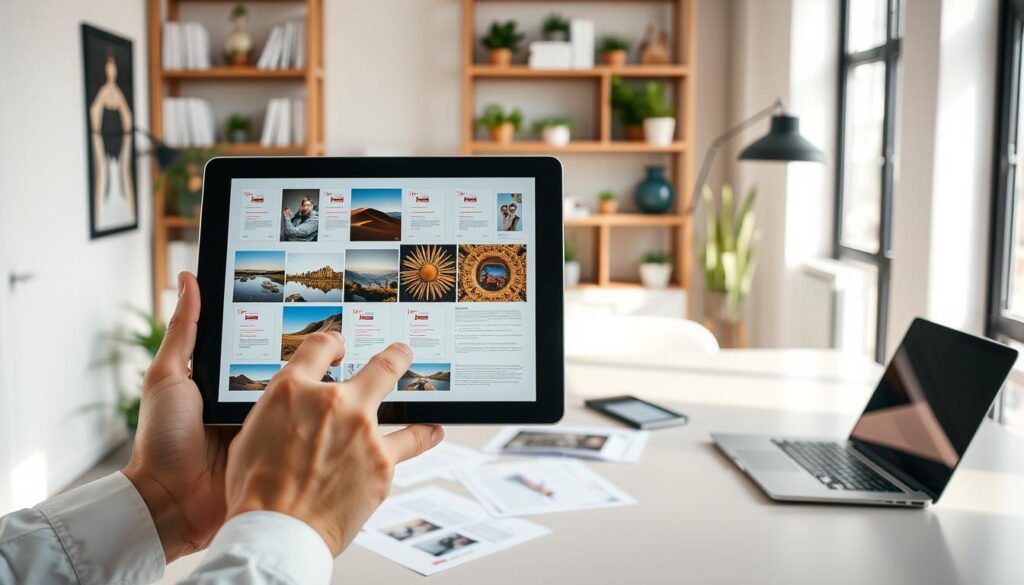
Organizing your photos into one document makes your digital space cleaner. When you combine images into one PDF, you turn loose files into a neat collection. This stops the hassle of searching for files later.
Arranging Pages in the Correct Sequence
Most tools sort images by date or name, but this isn’t always right. It’s essential to check your order before you export. A quick drag and drop can make sure your document makes sense from start to end.
Using Captured Receipts, Notes, and Forms
A multi-page PDF is perfect for keeping related items together. It’s great for digitizing notes, legal forms, or receipts. This keeps all your info in one place, so you don’t lose anything.
Keeping Multi-Page Files Easy to Read
A clear document is key. To make your file professional, follow these tips:
- Remove duplicates: Get rid of blurry or extra shots before you start.
- Maintain consistency: Use the same framing and lighting for all images.
- Check orientation: Make sure all pages are the right way up and aligned.
Practical Example: Combining Several Receipts for a Reimbursement Claim
Let’s say you’re submitting a travel expense report. Instead of sending five images, combine them into one PDF. Arrange your receipts in order and make sure the text is clear. This makes your report easy for your accounting team to approve. It shows you pay attention to detail and avoid mistakes.
Improving Image Quality Before Exporting
Before your images become part of a PDF, you can make them look better. A good PDF scanner app has tools to improve your photos. This way, your final PDF will look professional.
Cropping Out Unnecessary Background Areas
When you take a photo, you might get extra space around it. This could be a desk or a messy background. Using the cropping tool helps you focus on what’s important. This simple adjustment makes your document look cleaner and more professional.
Rotating Sideways Photos and Straightening Pages
Photos can sometimes be taken at the wrong angle or in the wrong orientation. Most tools let you rotate images easily. This ensures the text is right-side up. Straightening tools also help fix pages that are slightly off, making your document much easier to read.
Balancing Readability, File Size, and Resolution
It’s important to know how your app handles data. Resolution is how detailed an image is. PDF image compression reduces file size by using less data. You should pick settings based on your needs:
- High Quality: Best for documents with fine text or detailed graphics.
- Medium Quality: A great balance for general office or school work.
- Low Quality: Useful when you need to send a file quickly over a slow connection.
Remember, while PDF image compression saves space, too low a setting can make text hard to read. Always check your file before sending to make sure it looks right for your purpose.
Making Dark or Faint Documents Easier to Read
If your photo is too dark or the text is faint, you can adjust brightness or contrast. These changes can help text stand out. But, if an image is very blurry or lacks detail, these tools can’t fix it. The best results come from taking clear photos in good light.
Sharing and Saving PDF Files Safely
Keeping your sensitive info safe starts with how you save and share PDFs. Making consistent habits helps keep your documents in order. This way, only the right people can see them.
Saving PDFs Locally or to Cloud Storage
Deciding where to save your PDF is key. Saving it locally on your device means quick access without needing the internet. But, cloud services like Google Drive or Dropbox offer automatic backups and sync across devices.
Sending Documents by Email or Messaging Apps
Sharing files via email or messaging apps is common. Always use a secure network for secure PDF sharing. Double-check the recipient’s email before sending to avoid data leaks.
Choosing the Right File Name and Folder
Being organized is as vital as being secure. Use descriptive filenames like “2023_Tax_Receipt_October.pdf.” Keep these in labeled folders for easy access and to avoid losing important documents.
When to Use a Password or Secure Sharing Link
Some documents need extra protection. For financial, medical, or identity files, make a password-protected PDF. Cloud services also let you create a secure link that expires.
Using a password-protected PDF means not sharing the password in the same message. Send the password in a separate, trusted channel, like a phone call. This step greatly boosts your security.
Privacy and Security Features That Matter
When you turn images into documents, keeping your privacy is key. Today’s tech makes file changes easy, but you must watch your data. Choosing the right tools helps keep your info safe.
Understanding Whether Images Leave Your Device
Many like offline PDF conversion because it works right on your device. This way, your photos stay on your phone or computer. It’s a big security plus for private stuff.
“Security is the bedrock of trust in the digital age, specially when managing personal documents.”
Checking Permissions Before Using the App
Before you start, check what the app wants to do. Most need to see your camera or photos. But watch out for “All Files Access” if it’s too much. Only give what’s needed to keep your data safe.
- See if the app wants your contacts or location.
- Look at the app’s privacy policy for data sharing.
- Turn off extra permissions in your settings after you install.
Protecting Personal, Financial, and Medical Documents
For important stuff like tax forms or health records, look for strong security. A password-protected PDF is a must. Make sure your software uses encryption to keep your files safe.
Questions to Ask About Cloud Processing and File Deletion
If you use cloud services, ask important questions. Does it offer a password-protected PDF for your files? Also, does it delete your images after use?
It’s important to know how long your data is kept. If an app doesn’t explain how it deletes files, choose an offline PDF conversion tool. Always pick services that care about your personal, financial, and medical data.
Using an Image to PDF Converter App for Work and School
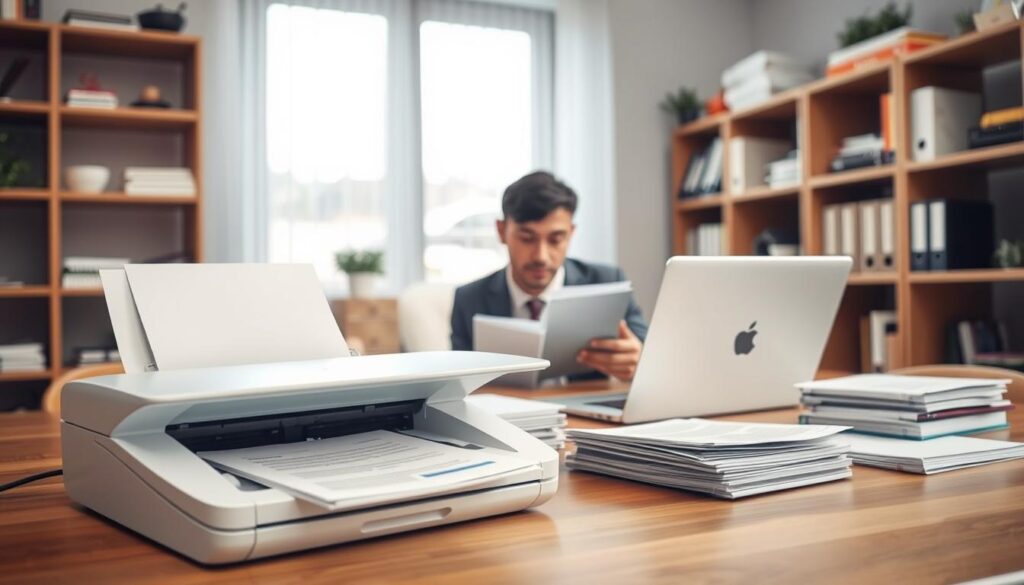
Switching from paper to digital is key for work and school. When you scan documents to PDF, you link the physical world to digital organization. This keeps your important info easy to access and share.
Submitting Assignments and Handwritten Notes
Students often prefer to keep handwritten notes and diagrams. A mobile converter turns these into a clean PDF for work and school projects. Make sure to check your teacher’s file size and submission rules before uploading.
Digitizing Business Receipts and Expense Records
Professionals often have many paper receipts. Converting them into one file makes reimbursement easier. Consistent file naming helps your accounting team process your expenses quickly.
“Efficiency is doing things right; effectiveness is doing the right things.”
Preparing Forms, Contracts, and Signed Documents
Legal or administrative paperwork needs to be precise and clear. Many apps let you check each page before exporting. This ensures signatures are clear and text is sharp, protecting your interests.
Creating Consistent Files for Clients and Coworkers
Providing professional, uniform documents is key for teamwork. A well-structured PDF for work and school lets others see your content as you meant it. These steps help you keep a reliable and clear communication image:
- Always check the page order before finalizing your export.
- Use descriptive, standardized filenames for easy retrieval.
- Review privacy settings to ensure sensitive data remains protected.
- Verify that all text is legible and properly oriented.
By choosing to scan documents to PDF, you show a commitment to quality. This benefits everyone, whether it’s a thesis or a quarterly report. The right digital tools are key to your daily productivity.
Using an Image to PDF Converter App at Home
Converting important documents into digital files can make your life easier. By using a mobile app to scan documents to PDF, you get rid of paper clutter. This makes your home more organized and efficient.
Scanning Household Records and Warranty Documents
Keeping track of your home inventory is simpler with digital household records. Capture images of appliance manuals and store receipts right after buying. This way, you have proof of purchase if something breaks or needs repair.
Saving Children’s Artwork and Important Memories
Art projects take up space but hold great value. Instead of keeping every drawing, turn photos into a digital gallery. This way, you save memories without the need for physical storage, making it easy to share with family.
Organizing Travel Documents and Identification Copies
Stress-free travel starts with preparation. Make digital backups of your passport, driver’s license, and travel insurance before you go. Having these on your phone is a reliable safety net if you lose your documents.
Keeping Sensitive Copies Separate From Everyday Photos
While it’s convenient, personal identification needs extra care. Store sensitive files in a password-protected folder or secure cloud drive. This keeps your private info safe while keeping your photos accessible.
| Document Category | Storage Priority | Recommended Action |
|---|---|---|
| Warranty/Receipts | Medium | Cloud backup |
| Children’s Art | Low | Local folder |
| ID/Passports | High | Encrypted storage |
| Travel Permits | High | Secure cloud |
Troubleshooting Common Conversion Problems
Running into technical issues while converting images to PDF is common. Most problems come from the quality of the images or software bugs. By taking a systematic approach, you can fix these issues quickly. This ensures your documents look professional.
What to Do When the PDF Looks Blurry
If your PDF is blurry, the problem might be with the original photo. Poor lighting or camera shake can make it fuzzy. Try taking a new photo in good light with a steady hand.
If the photo is clear but the PDF is not, check your app’s settings. Sometimes, a higher quality export setting can fix the issue. But, if the image is low-resolution, editing won’t fully improve it.
Fixing Incorrect Page Order or Orientation
It’s easy to accidentally put photos in the wrong order or with the wrong rotation. Most apps let you manually drag and drop pages to fix this. Always check the preview screen to make sure everything is right.
If a page is sideways after conversion, you might need to start over. Verifying the orientation before converting saves time. Consistency is key for a professional document.
Reducing a PDF That Is Too Large to Send
Big files are hard to share by email or messaging. To reduce PDF file size, use your app’s built-in tools. These tools often use PDF image compression to make the file smaller without losing text quality.
Be careful not to compress too much, as it can make text hard to read. Always check the document after optimizing. If the text is clear, you’re good to go.
Resolving Failed Exports, Missing Pages, or App Crashes
If your app crashes or fails to export, make sure it’s updated. Developers often release fixes to improve performance. If problems continue, close other apps to free up memory.
Always keep your original images safe until you’ve shared or saved the PDF. If a file keeps causing errors, try converting a smaller batch. Staying organized helps if you run into technical issues.
How to Choose the Right Image to PDF Converter App
Finding the right software to convert photos into documents can be tough. There are many choices out there. Look for an app that meets your needs, keeps your data safe, and is easy to use.
Comparing Free Features With Paid Upgrades
Many apps offer a free PDF converter app for basic tasks. These free versions are good for occasional use. But, paid upgrades often add more features like batch processing and cloud integration.
Check the pricing, as some services may charge after a trial. This can be a monthly or annual fee.
- Core Functionality: Does the free version allow unlimited conversions?
- Advanced Tools: Are features like image compression or password protection locked behind a paywall?
- Trial Terms: If a subscription is required, verify the cancellation policy before starting a trial.
Deciding Between Offline and Cloud-Based Conversion
For sensitive data like financial or medical records, offline PDF conversion is safer. It keeps your data on your device, not online. But, cloud-based tools are handy for accessing documents from different devices or when storage is limited.
| Feature | Offline Conversion | Cloud Conversion |
|---|---|---|
| Data Privacy | High (Local) | Variable (Server) |
| Internet Need | Not Required | Required |
| Speed | Device Dependent | Network Dependent |
Matching the App to Your Device and Workflow
Your PDF maker app should match your device. If you use a smartphone, choose an app with easy gestures and sharing. It should also work well with your file management and email.
Recognizing a Dependable App From Its Permissions and Reviews
Before installing, check the app’s permissions and user feedback. A good PDF maker app only needs access to what it needs. Look at the update history to see if the developer is keeping the app secure and improving it.
Always prioritize your digital safety by reading the privacy policy. By doing your research, you can find a reliable offline PDF conversion tool that meets your needs. This ensures your documents are organized, secure, and easy to share.
Conclusion
Turning your paper documents into digital files is a smart move. It makes handling your daily tasks easier. A good image to PDF converter app can turn your photos, receipts, and notes into neat, shareable documents quickly.
Getting the conversion right is key. Check the image quality, make sure pages are in the right order, and pick good file names. This keeps your documents easy to find. Always check the app’s privacy settings to keep your data safe.
Finding the right image to PDF converter app is important. It should be easy to use and have the features you need. Whether you need to protect sensitive documents or just want to share them fast, the right app gives you control.
Using these tips makes managing your documents simple. You’ll feel secure knowing your files are safe and ready when you need them.