Ever felt stuck with data in a static document? Whether it’s for school or a big business report, not being able to edit can slow you down. But now, you can streamline your workflow by using a web tool to convert pdf to powerpoint free online. You don’t need to install big software.
This method works great on both computers and phones. It’s a reliable solution for people who are always busy. Even though the quality of your PDF to PPTX file depends on the original, modern AI makes it quick. Just a few easy steps can turn stiff layouts into editable slides that look professional.
Key Takeaways
- Browser-based tools eliminate the need for complex software installations.
- Most platforms support various file types, including scanned documents with OCR technology.
- Conversion quality is highest when the source file uses standard fonts and clear graphics.
- Security is a priority, with many services providing encrypted, temporary file processing.
- Users can achieve professional results in under a minute with minimal technical effort.
What to Know Before Converting a PDF to PowerPoint
Before starting, it’s good to know what to expect. PDFs are great for keeping documents the same everywhere, but they’re not easy to edit. Knowing how a pdf to powerpoint converter works can save you time and headaches.
Why convert a PDF into an editable presentation
PDFs are perfect for sharing static info, but they’re a problem when you need to present live. By turning your PDF into editable PowerPoint slides, you can change text, update charts, and adjust your story.
This flexibility is key when making a long report into a short, impactful slide deck. You can reuse your info in an editable presentation for your next meeting.
“The greatest value of a presentation lies not in its design, but in its ability to clearly communicate complex ideas to an audience.”
What online PDF-to-PowerPoint converters can preserve
Today’s tools are great at keeping your document’s look and feel. A good PDF conversion keeps your text, images, and basic shapes the same. Many services also keep your layout, like headers and footers, just right.
If your source file is well-made, the output will look very similar. This helps keep your brand’s look without having to redo everything.
When the converted slides may need manual cleanup
Even with great tech, sometimes you’ll need to touch up your editable PowerPoint slides after PDF conversion. This is often true for complex elements like layered graphics or dense tables.
If your PDF has flattened images or special text, the software might not get it right. A quick check by hand can make sure your editable presentation looks great and works as planned.
Convert PDF to PowerPoint Free Online
Turning your static documents into dynamic presentations is easier than you think. When you need to convert pdf to powerpoint free online, the right tools can save you a lot of time. This way, you can use your existing content without having to type it all over again or do complex design work.
Open a reputable online PDF converter
Start by picking a trusted online pdf converter that’s fast and accurate. A good service like PDFgear keeps your data safe and gives you great results. Make sure the platform is well-liked by others for a smooth experience.
Upload the PDF from a computer or cloud storage
After choosing your tool, uploading your document is easy. Most platforms let you upload from your computer or cloud services. This makes it simple to convert pdf to pptx no matter where your file is.
Choose PowerPoint or PPTX as the output format
After uploading, pick the right output format. Most systems use the modern PowerPoint file format, PPTX, for better compatibility. Make sure you choose this before starting to avoid file format problems later.
Download the converted presentation and review the file
Conversion is usually quick, with many tools making a deck in under a minute. After it’s done, download your pdf to powerpoint converter file right away. It’s very important to check every slide to make sure everything looks right before you show it to your audience.
Prepare Your PDF for a Cleaner PowerPoint Conversion
Getting a professional result from a PDF conversion starts before you upload your file. Organizing your source material ensures your slides are clean and functional. This preparation is key for high-quality output.
Use a high-quality PDF with readable text and images
The quality of your source document affects the final presentation. A clear, high-contrast file helps the software work better. Avoid blurry or heavily compressed files for the best results.
Check whether the PDF contains selectable text or scanned pages
It’s important to know if your PDF has digital text or images. If it’s a scanned PDF to PowerPoint, the converter uses OCR to read words. Documents with selectable text are easier to process.
Remove unnecessary pages before uploading
Efficiency is important when handling files. Delete any blank, duplicate, or irrelevant pages before starting. This step saves time and prevents unnecessary slides.
Keep charts, tables, and complex layouts easy to interpret
Complex visual elements need extra care. Make sure your charts and tables are clear at standard slide sizes. If a table is too dense, simplify it to keep the information clear for your audience.
How PDF-to-PowerPoint Conversion Preserves Slide Design
When you move content from a static PDF to an editable PowerPoint, a big change happens. This change is more than just copying images; it’s about turning static things into things you can change. How well the converter keeps the original design in a new format is key.
What happens to page dimensions and slide proportions
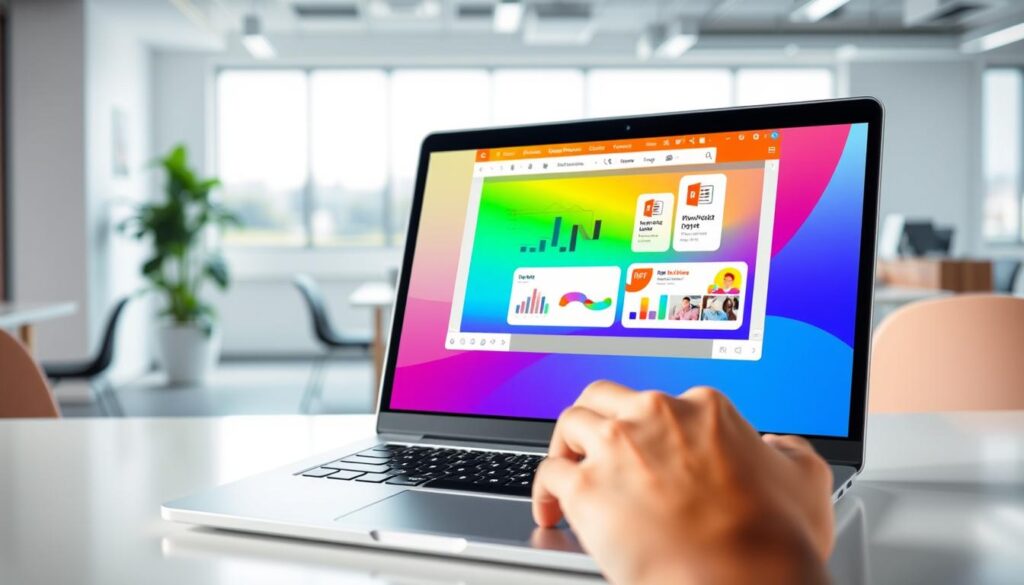
A PDF is made for a fixed size, like 8.5 by 11 inches. PowerPoint slides are wider, with a 16:9 aspect ratio. When converting a PDF to PowerPoint, the software stretches or shrinks the content. This can lead to empty space or changes in the margins.
How text boxes, images, and shapes are handled
Converters try to break down a PDF into parts you can edit. Text goes into text boxes, and images become separate files. But, complex shapes might become one image if the software can’t see the layers. This is why some parts stay the same, while others can’t be changed.
Why fonts can shift between the PDF and PowerPoint
Fonts in a PDF are set to look the same everywhere. When converting to PowerPoint, the software tries to find matching fonts on your computer. If it can’t find the exact font, it uses a default one. This can mess up the text’s look and feel.
How tables, charts, and layered graphics may change
Tables and charts are hard to keep the same. Simple tables might stay as editable grids, but complex charts often become images. Layered graphics can also get mixed up, with some parts showing up behind others.
“The integrity of a document during conversion relies on the balance between visual fidelity and the structural logic of the target format.”
To understand the difference between how things look and how they work, look at this comparison:
| Element Type | Visual Preservation | Editability Level |
|---|---|---|
| Standard Text | High | High |
| Complex Charts | Medium | Low |
| Layered Shapes | Low | Medium |
| Simple Tables | High | High |
Getting a PDF to convert well needs knowing its limits. Even with good tools, you might need to tweak things to get it just right.
Make a Converted PowerPoint Fully Editable
To make a presentation fully editable, you need more than just converting a file. Many tools make the presentation look good but don’t let you change it much. You might find that you can’t change the background or add new content easily.
Separate text from background images
Some converters turn a whole PDF page into one big image. This makes it hard to pick out and change words. To get around this, try copying the text from the PDF and pasting it into new boxes on your slide.
After you’ve got the text in a box, you can delete the image underneath. This keeps your editable PowerPoint slides looking sharp and professional when you update them.
Replace flattened graphics with editable PowerPoint elements
Icons and shapes from PDFs can look blurry when converted. Instead of using these images, use PowerPoint’s tools to make new ones. Native shapes let you change colors, borders, and sizes without losing quality.
Rebuild charts and tables when accurate editing matters
Tables and charts can be hard to work with after a conversion. If you need to update the data often, it’s best to make new ones using PowerPoint’s tools. This way, your editable presentation stays accurate and easy to change as your data does.
Group, align, and resize objects without disrupting the layout
Keeping your presentation looking neat is key. Use the grouping feature to move or resize items together. Alignment tools help keep your text and images in the right place on the slide.
By doing these extra steps, you turn a static document into a dynamic tool. Proper PowerPoint editing saves time, which is great for reports or templates that need to be updated often.
Check the Presentation After Downloading
Getting your file downloaded is just the start. While tools are great, a human touch is key for professional quality control. A quick check ensures your presentation is perfect for any audience.
Review every slide for missing or misplaced content
Go through each slide carefully to make sure everything is in its place. Sometimes, PDF slide conversion can mess with layouts, causing text or images to get jumbled. Look out for any cut-off sentences or missing icons.
Compare the presentation with the original PDF
Have your original document and new PowerPoint file open together. This helps you spot any mistakes in data, like charts or tables. If you find any errors, fix them right away to keep your info correct.
Test fonts, colors, hyperlinks, animations, and speaker notes
Pay special attention to technical details to keep PDF to PowerPoint formatting right. Make sure hyperlinks work and fonts look as you chose. Also, check that speaker notes and animations are there and working.
Run the slideshow from beginning to end
Lastly, play your presentation in full-screen mode. This step catches problems that aren’t seen in editing view, like bad transitions or text that’s too long. A full test gives you the reassurance you need before sharing it.
| Checklist Item | Action Required | Priority |
|---|---|---|
| Text Alignment | Verify all boxes are centered | High |
| Hyperlinks | Click to test navigation | Medium |
| Data Accuracy | Compare charts to source | Critical |
| Visual Flow | Check slide transitions | Low |
Convert Scanned PDFs and Image-Based Documents
Working with a scanned PDF to PowerPoint means you face a challenge. You need to turn static images into editable text. Many documents, like old reports or photographed pages, don’t have selectable text. Standard tools just see the whole page as one picture.
Recognize when optical character recognition is required
Optical Character Recognition, or OCR, is key. It turns images into text that computers can read. You’ll need an OCR PDF converter for scanned pages, photos, or graphics. Without it, editing your presentation will be tough.
Improve OCR results with clear scans and strong contrast
The quality of your scans affects how well they’re converted. For top results, make sure scans are clear and have strong contrast. Minimal background noise and straight text help the software read letters better.
Correct misread words, numbers, and special characters
Even the best tools can make mistakes with complex layouts or blurry text. Always check your slides, but be extra careful with important data. The software might confuse “0” and “O” or get decimal points wrong.
Know when a scanned PDF will produce image-based slides
Some scans are too poor for text recognition. If the software fails, you’ll get image-based slides instead of text. You might need to type it all again or use a professional PDF to PPT tool. Always check your final presentation for clarity and function.
Protect Sensitive Files When Using an Online Converter
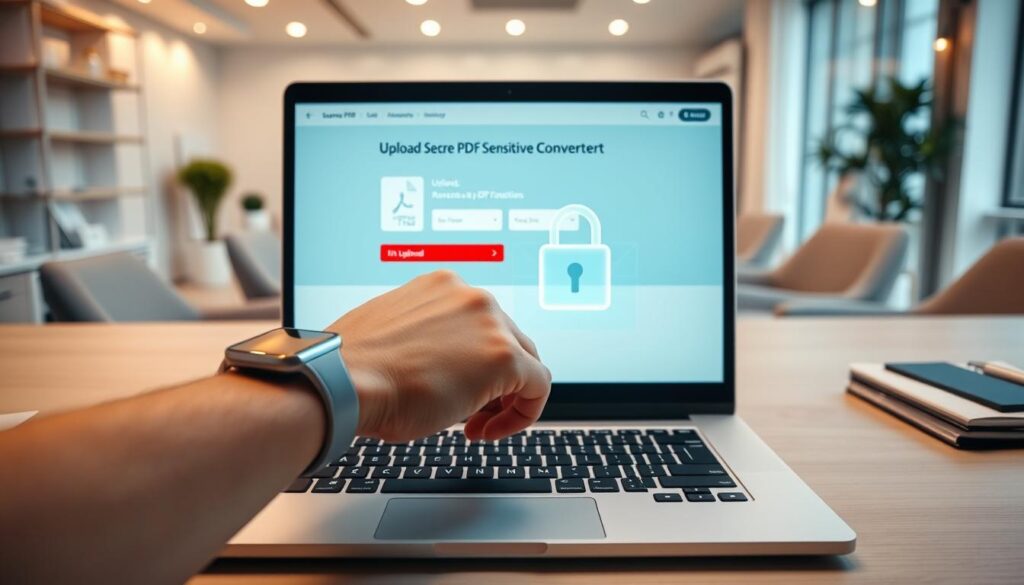
Knowing how your data is handled is key to keeping it safe. Many tools are convenient, but it’s important to know how they process and store your documents. Choosing a secure PDF converter means finding a balance between ease and safety.
Read the service’s privacy and file-deletion policies
Before uploading any document, check the provider’s terms of service. Look for how long your files stay on their servers. Good services delete files automatically after a short time, like one or two hours.
“Data privacy is not just a feature; it is a fundamental requirement for any digital workflow involving sensitive information.”
Avoid uploading confidential documents to untrusted websites
Not all websites protect your data well. Don’t upload sensitive stuff like legal contracts or medical records to unknown sites. If a site doesn’t clearly talk about its security, choose a more trusted PDF to PPT tool instead.
Use secure connections and remove downloaded files when appropriate
Make sure the website uses HTTPS. This means your data is encrypted while it’s being sent. Also, delete the converted file from the “Downloads” folder right after you’re done, if you’re on a public computer.
Choose offline software for highly sensitive business or personal data
For super confidential info, offline software is the safest choice. It keeps your data safe by processing it on your own machine. This is the best way to protect PDF privacy and security for sensitive info.
| Security Standard | What It Means | Why It Matters |
|---|---|---|
| GDPR Compliance | Data protection laws | Ensures user rights |
| ISO/IEC 27001 | Information security management | Verified safety protocols |
| SOC 2 Type II | Operational security | Proven system reliability |
Your tool choice should match the sensitivity of your content. By being careful and picking a secure PDF converter that fits your needs, you can benefit from digital tools without worrying about your data.
Troubleshoot Common PDF-to-PowerPoint Conversion Problems
Even the best digital tools can sometimes run into problems. If your file doesn’t convert right, you might be able to fix PDF conversion problems by tweaking your source file or settings.
Fix missing text or characters
Missing text often happens when a document uses uncommon fonts or complex encoding. If your slides show empty boxes or strange symbols, try saving the PDF as an image first. Optical Character Recognition (OCR) can also help the converter find and read text from scanned documents.
Correct distorted images and unusual page breaks
Distorted images usually come from high-resolution graphics being compressed too much. You can replace these images in PowerPoint after conversion to improve the look. If page breaks are off, try cropping the PDF pages to remove extra white space before converting.
Handle large PDFs, upload failures, and slow downloads
Many free online tools have file size limits, often at 100MB. If your file is too big to convert pdf to pptx, use a compression tool to shrink it. Or, split your document into smaller parts for easier uploading.
Improve slides created from password-protected PDFs
Security settings can block a converter from reading your file. Always make sure you have the right permissions to unlock the document before trying to convert it. Once unlocked, the software can read the file better, leading to cleaner slides.
What to do when the output is a PPT instead of a PPTX file
If you get an older PPT file instead of the modern PDF to PPTX format, check your settings. Some platforms default to older formats for compatibility. If you can, choose the PPTX format to get the latest features and better image quality.
| Common Issue | Primary Cause | Recommended Solution |
|---|---|---|
| Missing Text | Font incompatibility | Use OCR or re-save PDF |
| Distorted Images | High compression | Replace image manually |
| Upload Failure | File size limit | Compress or split file |
| Wrong Format | Default settings | Select PPTX in menu |
Use Converted Slides for Work, School, and Presentations
Turning static documents into dynamic presentations is key for today’s professionals and students. When you convert PDF for work and school, you make complex ideas easier to understand. This way, you can share your message clearly and effectively.
Turn a company report into an editable presentation
Company reports are full of valuable data but hard to understand in meetings. By converting them, you get editable PowerPoint slides for your executive summary.
Removing unnecessary text makes your presentation clear and concise. This saves time and keeps your visuals consistent with your documents.
Convert lecture notes, research papers, and handouts into slides
Students and teachers often struggle to make long research into easy-to-understand presentations. Turning notes into slides helps focus on key points without retyping everything.
“The best presentations are those that distill complex information into a narrative that the audience can follow and remember.”
This method is great for study guides or summarizing long papers. It makes complex text easier to follow and remember.
Reuse client proposals and project documents without starting over
Efficiency is key in business. Instead of starting from scratch, use existing client proposals for new updates or reports.
- Save time: No need to copy and paste everything.
- Maintain consistency: Keep your branding and data consistent.
- Focus on strategy: Improve your message, not just the layout.
Adapt a PDF presentation for a new audience or meeting
Editing your deck for different audiences is powerful. You might need to simplify terms for clients or add more details for your team.
Remember, a converted file is just a working draft. Always check the content to fit your audience’s needs. Documents for reading and presentations have different structures.
Choose the Right Free Online Conversion Workflow
Choosing the right conversion method is key to getting professional results. Many tools claim to convert instantly, but the best free PDF conversion workflow varies by your document’s type. Knowing if your file is text-heavy, image-based, or complex helps avoid manual cleanup.
Use a quick conversion for simple, text-based PDFs
For documents mainly text and basic formatting, a standard online pdf converter works well. These tools are great at pulling out clean text and placing it in PowerPoint slides. This method is perfect for simple reports or lecture notes with straightforward layouts.
Choose OCR for scans and photographed documents
Scanned pages or images of documents need an OCR PDF converter. Optical Character Recognition technology reads the images, turning them into editable text. This makes it easy to work with the text in your presentation.
Use a different workflow for complex designs and heavy editing
Documents with layered graphics, complex tables, or specific layouts need a more advanced pdf to powerpoint converter. These tools use AI to recognize headers, bullet points, and tables. This keeps the presentation organized and professional.
The quality of your presentation depends on the tool you choose. It should respect the original document’s structure while allowing for modern slide design.
Balance convenience, accuracy, privacy, and download limits
Every user must consider the trade-offs between speed and security. Free services are convenient but check their privacy policies before uploading sensitive data. If your document is confidential, use offline software to keep your data safe.
| Document Type | Recommended Workflow | Key Benefit |
|---|---|---|
| Simple Text | Standard Conversion | High Speed |
| Scanned Images | OCR Processing | Text Recognition |
| Complex Layouts | AI-Restructuring | Layout Accuracy |
| Sensitive Data | Offline Software | Maximum Privacy |
The goal is to spend less time editing after conversion. By picking the right pdf to powerpoint converter for your needs, your slides will be polished and ready for your audience.
Conclusion
Turning static documents into dynamic slides is a key skill today. You can convert pdf to powerpoint free online by uploading your file. Then, choose the format you want and download it.
This makes your documents editable and tailored to your needs. It’s a big step up from static layouts.
Files with selectable text usually work best. But scanned documents might need optical character recognition for accuracy. Always check your slides to make sure everything looks right.
When dealing with sensitive info, keep your data safe. Check the privacy policies of the pdf to powerpoint converter you use. For top-secret projects, use offline tools like Adobe Acrobat or Microsoft PowerPoint.
Having a good conversion process saves you a lot of time. You’re in charge of making sure your work is top-notch and secure. Follow these tips to boost your productivity and make presentations that impress.