Mean Absolute Deviation (MAD): How to Calculate It Step by Step
The mean absolute deviation (MAD) tells you how far, on average, each value sits from the mean. It’s an intuitive measure of spread: a small MAD means the data is tightly clustered.
Quick answer
- Find the mean.
- Find each value’s distance from the mean (ignore minus signs).
- Average those distances.
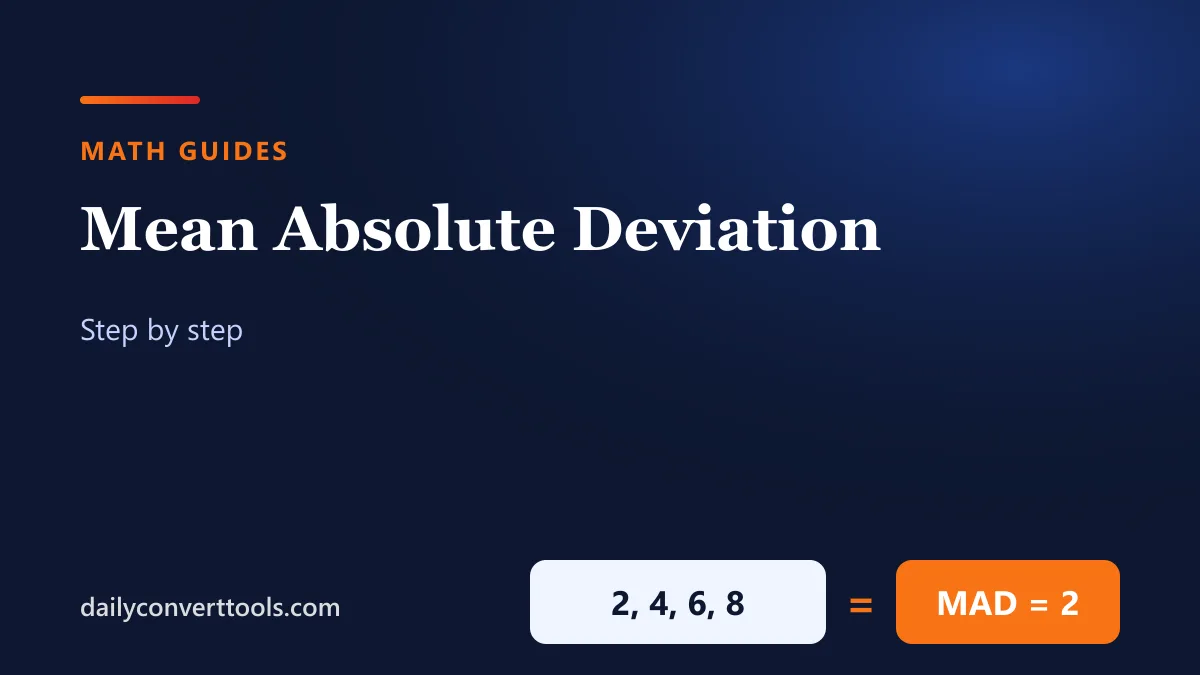
Example: 2, 4, 6, 8 has mean 5; distances 3, 1, 1, 3; MAD = 8 ÷ 4 = 2.
Step-by-step example
Data: 3, 6, 6, 7, 8, 11, 15, 16.
| Value | Distance from mean (9) |
|---|---|
| 3 | 6 |
| 6 | 3 |
| 6 | 3 |
| 7 | 2 |
| 8 | 1 |
| 11 | 2 |
| 15 | 6 |
| 16 | 7 |
- First, the mean: 72 ÷ 8 = 9.
- Next, add the distances: 30.
- Finally, divide by the number of values: 30 ÷ 8 = 3.75.
So on average, each value is about 3.8 away from the mean.
Why absolute values?
Distances above and below the mean would cancel out if you kept the signs: they always add to zero. Taking the absolute value (see absolute value) keeps every distance positive.
MAD vs standard deviation
| Mean absolute deviation | Standard deviation | |
|---|---|---|
| Method | Averages the distances | Averages squared distances, then square roots |
| Effect of outliers | Moderate | Larger, because squaring amplifies big gaps |
| Where used | Intro statistics, forecasting error | Most statistics and science |
For this data set, the population standard deviation is 4.30, a little larger than the MAD of 3.75. See standard deviation.
In Excel or Google Sheets
=AVEDEV(A1:A8) returns the mean absolute deviation directly.
Median absolute deviation
Some fields use the median absolute deviation instead, which takes medians rather than means and resists outliers even more. Check which one your course or software means by “MAD”.
Frequently asked questions
What is mean absolute deviation?
The average distance of each value from the mean.
How do I calculate MAD?
Find the mean, take each value’s absolute distance from it, and average those distances.
What does a large MAD mean?
The values are spread far from the mean.
How do I calculate MAD in Excel?
Use =AVEDEV(range).