How to Resize an Image (Without Stretching or Losing Quality)
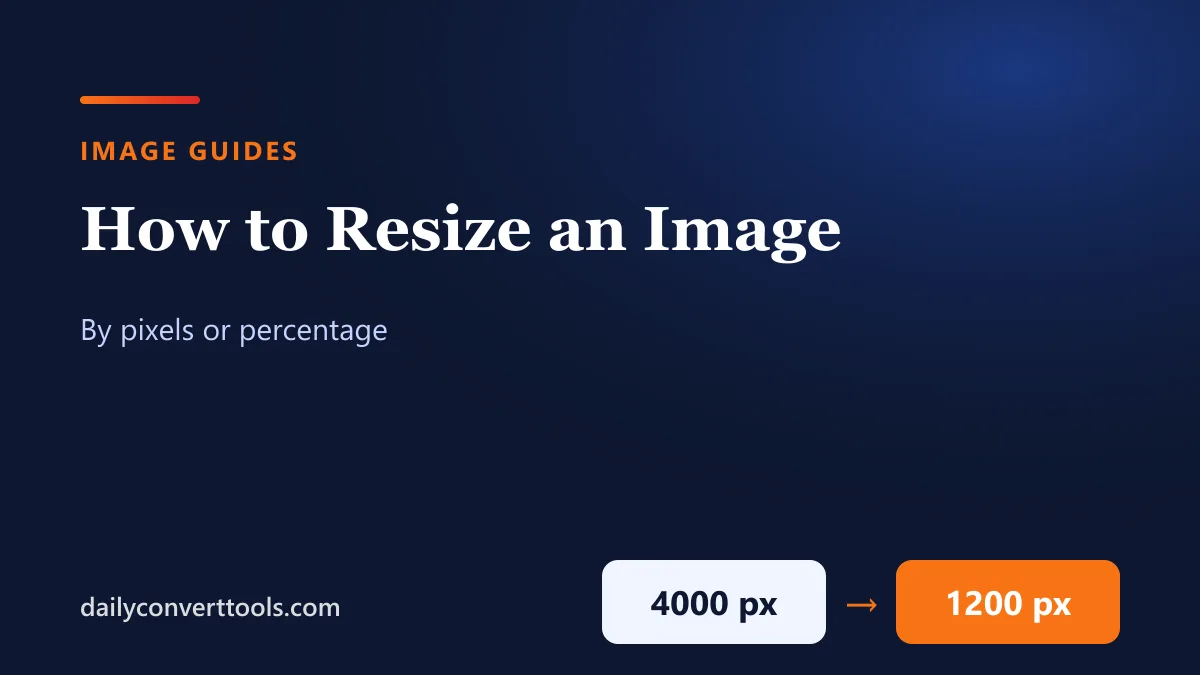
Photos from modern phones are often 4,000 pixels wide or more: far bigger than you need for email, websites or upload forms. Resizing an image makes it smaller in dimensions and usually in file size too.
Quick answer
- First, open the DailyConvertTools image resizer and add your image (up to 50 MB).
- Then choose By Dimensions (enter a width or height in pixels) or By Percentage (for example 50%).
- Keep aspect ratio lock on so the image doesn’t stretch.
- Finally, pick an output format (keep the original, or JPEG, PNG or WebP) and download.
Resizing runs in your browser, so the image isn’t uploaded.
Pixels or percentage?
- Pixels when a site asks for a specific size, such as “1200 × 630” or “at least 800 pixels wide”.
- Percentage when you just want it smaller: 50% halves the width and height, which cuts the pixel count to a quarter.
Keep the aspect ratio
With the lock on, changing the width updates the height automatically. A 4,000 × 3,000 photo resized to 1,200 wide becomes 1,200 × 900. If you need a different shape, such as a square, crop first instead of stretching; see the aspect ratio guide.
Making images bigger
Shrinking an image keeps it sharp. Enlarging it can’t add detail that wasn’t captured, so a small image blown up to several times its size looks soft or blocky. Start from the largest original you have.
Choosing a format
| Format | Use for |
|---|---|
| JPEG | Photos: small files, no transparency |
| PNG | Screenshots, logos and graphics with transparency |
| WebP | Images for your own website: smallest files |
If the file is still too big after resizing, compress it with the image compressor.
On your phone
iPhone users can also resize with built-in apps; see how to resize an image on iPhone. To understand pixel sizes for printing, see pixels to inches.
Frequently asked questions
How do I resize an image without losing quality?
Make it smaller, not bigger, and keep the aspect ratio locked. Save photos as high-quality JPEG or PNG.
How do I resize an image to a specific size?
Choose By Dimensions and enter the width or height in pixels.
Why does my resized image look stretched?
The aspect ratio was changed. Turn on the aspect ratio lock, or crop to the new shape first.
Does resizing reduce file size?
Yes, fewer pixels usually means a smaller file.